GB WhatsApp Customization Features: Complete User Guide
Customization is what sets GB WhatsApp apart from the standard messaging app. While the official WhatsApp offers a fixed interface with limited tweaks, GB WhatsApp gives you complete control over how the app looks, feels, and behaves. This guide from gbfmapps.net covers every major customization feature in detail, helping you transform the app into something truly personal.
Why Customization Matters
A messaging app is one of the most frequently used tools on any phone. Customizing the look and feel can make daily communication more enjoyable and even improve productivity by reducing visual clutter. GB WhatsApp makes this easy through a powerful set of tools accessible from the settings menu.
Whether you prefer bold colors, minimalist design, or playful themes, the 2026 release has the tools to match your style.
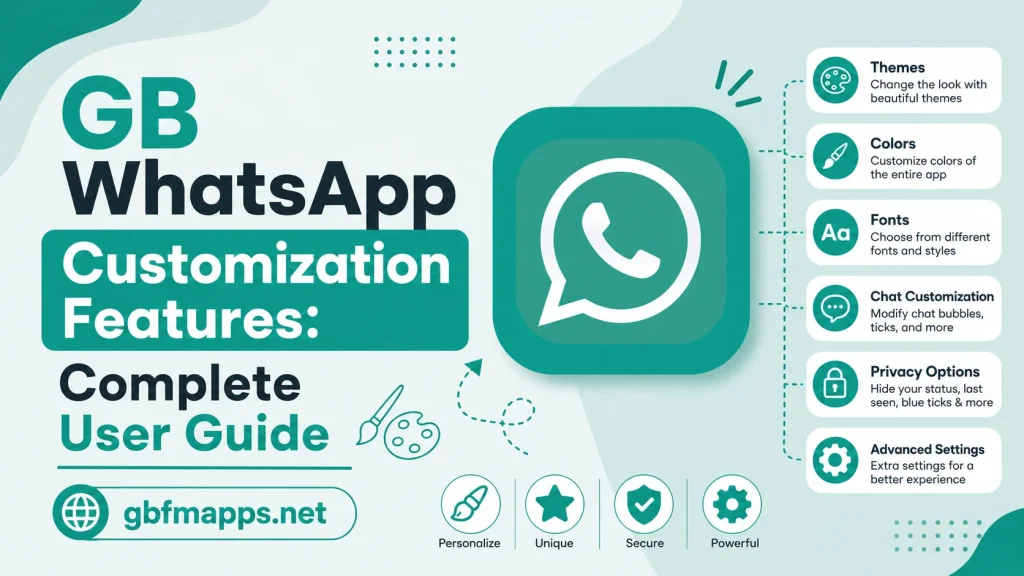
Overview of Customization Options
GB WhatsApp organizes its customization settings into clear categories. The table below summarizes the main areas you can personalize.
| Category | Customization Options |
|---|---|
| Themes | Full themes, partial themes, custom imports |
| Fonts | Hundreds of fonts in multiple languages |
| Colors | Header, bubbles, ticks, accents |
| Icons | App icon, notification icon, chat icons |
| Wallpapers | Per-chat backgrounds, global backgrounds |
| Ticks | Tick style, color, second tick visibility |
| Bubbles | Bubble shape, corner style, transparency |
| Navigation | Bottom bar layout, hidden tabs |
Applying Themes
Themes are the easiest way to change the entire look of GB WhatsApp with a single tap.
- Open GB Settings then Universal
- Tap Themes
- Browse the theme store or search for a specific style
- Preview the theme before applying
- Tap Apply to install
Saving Theme Favorites
When you find a theme you love, tap the heart icon to save it as a favorite. This makes switching between your preferred designs effortless.
Changing Fonts
GB WhatsApp includes an extensive font library that goes far beyond the official app.
- Open GB Settings then Universal
- Tap Font Style
- Choose from the available fonts
- Adjust the font size if needed
Custom Fonts per Chat
For users who want different fonts in different chats, GB WhatsApp supports per-chat font customization. Long press a chat, choose Customize, and apply your preferred font.
Customizing Colors
Colors play a major role in how the app feels. The 2026 release introduces more granular color controls than ever before.
| Color Setting | Where to Find It |
|---|---|
| Header Color | Universal then Header |
| Chat Bubble Color | Universal then Bubbles |
| Tick Color | Universal then Ticks |
| Accent Color | Universal then Accent |
| Background Color | Universal then Background |
Using a Custom Color Picker
For precise control, GB WhatsApp includes a built-in color picker. You can enter a specific hex code to match your favorite brand color or use the color wheel to find a unique shade.
Changing the App Icon
The launcher icon is the first thing you see on your home screen. GB WhatsApp allows you to change it to match your style.
- Open GB Settings then Universal
- Tap App Icon
- Choose from the available icon designs
- Apply the change to update the launcher icon
Multiple Icon Options
The 2026 release includes dozens of icon designs ranging from classic WhatsApp green to modern minimalist styles and seasonal themes.
Customizing Wallpapers
GB WhatsApp allows you to set wallpapers globally or per chat. This is perfect for keeping work chats visually separate from personal conversations.
- Open GB Settings then Chats then Wallpaper
- Choose a wallpaper from the gallery
- Apply it to all chats or to specific chats only
Dynamic Wallpapers
Some wallpapers include subtle animations that move as you scroll. These add life to the chat screen without draining the battery.
Tick Style Customization
Blue ticks are part of WhatsApp’s identity, but GB WhatsApp lets you change their appearance.
- Open GB Settings then Universal
- Tap Tick Style
- Choose from the available tick designs
- Adjust the color and size if needed
Custom Tick Designs
The tick style library includes everything from classic double ticks to modern minimalist icons. You can even upload a custom tick design using a PNG file.
Bubble Customization
Chat bubbles can be reshaped, recolored, and restyled to match your theme.
| Bubble Style | Description |
|---|---|
| Rounded | Soft edges for a friendly look |
| Square | Clean lines for a modern feel |
| Transparent | Subtle backgrounds for minimalism |
| Outlined | Borders only for a unique style |
| Gradient | Smooth color transitions for visual interest |
Navigation Customization
GB WhatsApp allows you to rearrange the bottom navigation bar and hide tabs you do not use.
- Open GB Settings then Universal
- Tap Navigation
- Drag and drop tabs to reorder them
- Toggle off any tabs you want to hide
Custom Navigation Layouts
You can save your navigation preferences as presets and switch between them depending on your needs. For example, use a work layout during office hours and a personal layout in the evening.
Home Screen Widgets
GB WhatsApp supports home screen widgets for quick access to your favorite chats.
- Long press on the home screen
- Choose Widgets
- Locate the GB WhatsApp widget
- Drag it to your preferred position
Widget Sizes
GB WhatsApp widgets come in several sizes, from a single chat preview to a four-by-four grid showing your most active conversations.
Status Customization
Beyond statuses themselves, GB WhatsApp allows you to customize how the status tab looks.
- Open GB Settings then Universal
- Tap Status Style
- Choose your preferred status layout
Status Themes
Some themes include custom status styles that match the overall design, giving your status tab a cohesive look.
Notification Customization
Notifications are highly customizable in GB WhatsApp, allowing you to assign unique tones, vibration patterns, and LED colors to specific contacts or groups.
- Open GB Settings then Notifications
- Choose a chat or contact
- Set the notification tone, vibration, and LED color
Per-Chat Notification Settings
For maximum customization, set unique notifications for individual chats. This helps you identify who is messaging without looking at your phone.
Creating a Unified Custom Look
To make the app feel truly cohesive, combine multiple customization settings.
- Pick a theme as your base design
- Match the font, tick style, and bubbles to the theme colors
- Customize the launcher icon for a unified home screen appearance
- Set a wallpaper that complements the theme
- Adjust the navigation layout for easier use
Recommended Customization Combinations
| Style | Recommended Settings |
|---|---|
| Minimalist | Light theme, simple font, square bubbles, hidden tabs |
| Vibrant | Dark theme, colorful ticks, gradient bubbles, animated wallpaper |
| Professional | Neutral theme, standard font, rounded bubbles, work navigation layout |
| Playful | Bright theme, custom font, outlined bubbles, custom icon |
Saving and Loading Customization Profiles
GB WhatsApp allows you to save your entire customization setup as a profile. This makes it easy to switch between designs.
- Open GB Settings then Universal
- Tap Save Profile
- Name your profile
- Load any saved profile anytime
Sharing Profiles
Custom profiles can be exported and shared with friends. This is a fun way to help others get started with their own customizations.
Frequently Asked Questions
Will customization changes affect performance?
Minor changes like fonts and colors have no noticeable impact. Heavily animated themes or live wallpapers may slightly affect battery life on older devices.
Can I reset all customization settings to default?
Yes, open GB Settings then Universal and tap Reset to Default. This will restore the original GB WhatsApp appearance.
Are custom themes safe to install?
Custom themes from gbfmapps.net and other trusted sources are safe. Avoid themes from unknown websites to protect your device.
Can I use different themes for different chats?
GB WhatsApp does not currently support per-chat themes, but you can change the global theme anytime with a single tap.
Will my customizations carry over after an update?
Most customizations are preserved during updates, but major updates may reset certain settings. Save your profile before updating just in case.
Conclusion
Customization is at the heart of the GB WhatsApp experience. With themes, fonts, colors, icons, bubbles, and more all adjustable, you can build an interface that matches your personality perfectly. Visit gbfmapps.net to download the latest version, explore the customization options, and create a messaging app that feels uniquely yours. By taking time to experiment with different combinations, you can transform a familiar messenger into a tool that truly represents your personal style. The more you explore, the more you discover just how flexible the app really is.