How to Back Up and Restore Chats in GB WhatsApp
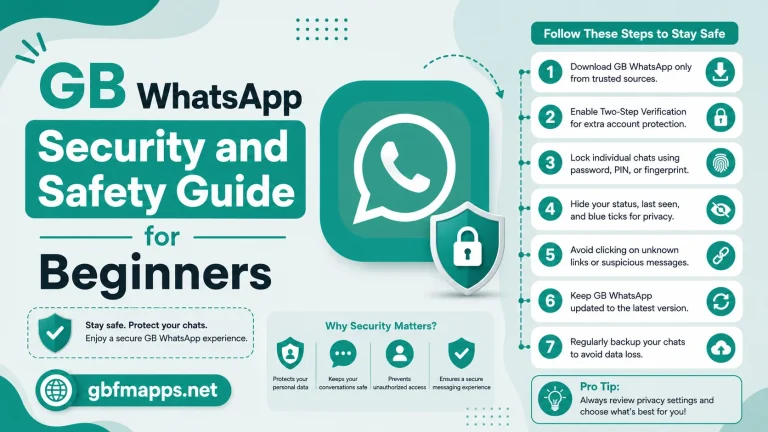
Backing up your chats is one of the most important habits for any messaging app user. With GB WhatsApp, the backup system is more powerful than ever, offering multiple storage options, automatic scheduling, and complete media preservation. This guide from gbfmapps.net explains how to back up and restore your chats properly so your conversations, media, and settings are always safe.

Why Backups Are Essential
Accidents happen. Phones get lost, storage gets wiped, updates sometimes go wrong, and unexpected crashes can erase data. Without a recent backup, restoring years of chat history can be impossible. A good backup routine protects you from all of these situations and gives you peace of mind.
GB WhatsApp offers two main backup methods plus several advanced options. Each method has its own advantages, and combining them gives you the strongest protection.
Types of Backups Available in GB WhatsApp
The table below summarizes the backup methods supported by the latest release.
| Backup Type | Storage Location | Includes Media | Best For |
|---|---|---|---|
| Local Backup | Internal storage | Yes | Quick offline backups |
| Google Drive Backup | Google account cloud | Optional | Cross-device transfers |
| Scheduled Backup | Local or cloud | Optional | Automatic daily protection |
| External Storage Backup | SD card or USB | Yes | Large archives |
Local Backup Explained
A local backup stores your chats and media directly on your phone. It is fast, works offline, and keeps a complete copy of your data without depending on any cloud service. Local backups are also the most reliable because they are not affected by network issues or cloud storage limits.
Google Drive Backup Explained
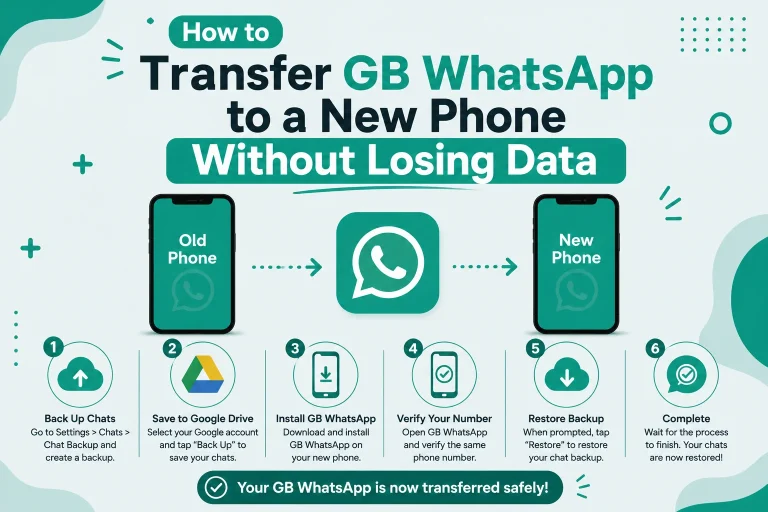
A Google Drive backup stores your data in the cloud. This is ideal if you want to transfer chats to a new device or keep a copy off your phone. GB WhatsApp uses a separate Google Drive slot from the official WhatsApp, so the two apps do not interfere with each other.
Creating a Local Backup
The local backup process takes only a few taps.
- Open GB WhatsApp on your Android device
- Tap the three dots in the top right corner
- Select GB Settings then Backup and Restore
- Choose Local Backup
- Wait for the backup to finish before continuing
Where Local Backups Are Stored
Local backups are saved inside the GB WhatsApp folder under internal storage. The folder structure looks like the example below.
- GB WhatsApp
- Databases
- Media
- Backups
- Stickers
The most recent backup file will include a timestamp in the file name, making it easy to identify.
Including Videos in Local Backups
By default, local backups include images and voice notes. To include videos as well, enable the Include Videos option in the backup menu.
Creating a Google Drive Backup
To back up to Google Drive, follow the steps below.
- Open GB Settings then Backup and Restore
- Tap Google Drive Backup
- Sign in with the Google account you want to use
- Choose your preferred backup frequency
- Tap Back Up Now to start the process
Recommended Google Drive Backup Settings
| Setting | Recommended Value |
|---|---|
| Backup Frequency | Daily or Weekly |
| Network Type | Wi-Fi Only |
| Include Videos | Yes if storage allows |
| Google Account | Dedicated for GB WhatsApp |
Scheduling Automatic Backups
GB WhatsApp supports scheduled backups so you never forget to save your chats.
- Open GB Settings then Backup and Restore
- Choose Auto Backup
- Pick the backup destination (Local or Google Drive)
- Set the backup frequency and time
- Save the schedule
Best Times for Scheduled Backups
The best time for automatic backups is overnight when your phone is connected to Wi-Fi and charging. This ensures the backup completes without interrupting your usage.
Restoring Chats from a Local Backup
Restoring a local backup is just as simple as creating one.
- Install the latest GB WhatsApp APK from gbfmapps.net
- Verify your phone number during setup
- When prompted, tap Restore
- Select the backup file you want to use
- Wait for the restore process to complete
What Gets Restored from Local Backup
- Complete chat history
- All images, videos, and voice notes
- Custom themes and fonts
- Locked chats and hidden conversations
- Privacy settings and preferences
- Recycle Bin entries
Restoring Chats from Google Drive
To restore a Google Drive backup, follow these steps.
- Install GB WhatsApp from gbfmapps.net
- Verify your phone number
- Tap Restore when prompted
- Sign in with the same Google account used for the backup
- Wait for the cloud backup to download and restore
Verifying the Restore
After the restore finishes, open a few conversations to confirm that messages and media are intact. Check the Recycle Bin and theme settings to confirm advanced features were restored correctly.
Troubleshooting Backup Problems
The table below covers the most common backup and restore issues and how to fix them.
| Problem | Cause | Solution |
|---|---|---|
| Backup fails midway | Insufficient storage | Free up space or change destination |
| Google Drive backup not starting | Account not signed in | Re-sign in with the correct Google account |
| Restore does not find backup | Wrong folder or account | Confirm the correct location and credentials |
| Media missing after restore | Media folder not copied | Transfer the full Media folder manually |
| Restore stops at a percentage | Corrupted backup file | Use a different backup if available |
Tips for Better Backup Management
- Keep at least two recent backups in different locations
- Label backup files with dates for easier identification
- Avoid clearing app data, as this removes local backups
- Use a dedicated Google account for GB WhatsApp backups
- Periodically export important chats for long-term archiving
Creating a Backup Archive
If you have chats that you want to keep forever, exporting them is a smart move.
- Open the chat you want to archive
- Tap the three dots in the chat menu
- Choose Export Chat
- Select whether to include media
- Save the file to your preferred location
Comparing Local and Cloud Backups
| Feature | Local Backup | Google Drive Backup |
|---|---|---|
| Speed | Fast | Depends on internet speed |
| Storage Limits | Based on phone storage | Based on Google account quota |
| Cross-Device Restore | Manual transfer required | Automatic when signing in |
| Media Support | Full | Optional |
| Reliability | High | High with stable network |
How Backups Interact With Updates
When updating GB WhatsApp, your backup files remain untouched. However, it is still recommended to create a fresh backup before every major update to ensure you have the most recent copy available.
Clearing Backup Files to Save Space
If your storage is filling up with old backups, you can safely delete older files. GB WhatsApp keeps the most recent seven backups by default. Adjust this number in the backup settings if you want to keep more or fewer copies.
Frequently Asked Questions
How often should I back up my chats?
Daily automatic backups are recommended for active users. Weekly backups are sufficient for casual users.
Will my backups include deleted messages?
Yes, backups include the Recycle Bin if it was enabled before the backup was created.
Can I restore a backup to a different phone number?
No, backups are tied to the phone number used during verification. You must use the same number to restore a backup.
Does GB WhatsApp support iCloud backups?
No, iCloud backups are not supported. Google Drive is the only cloud option for GB WhatsApp.
How long does a backup take?
A typical backup of 50,000 messages with media takes around five to fifteen minutes on a stable Wi-Fi connection.
Restoring Backups Across Different Android Versions
GB WhatsApp backups created on one Android version can usually be restored on a different version without issues. However, very old backups may occasionally require conversion. The tips below help you handle cross-version restores.
Restoring From Android 7 to Android 14
- Move the backup file to the same folder on the new device
- Install the latest GB WhatsApp APK from gbfmapps.net
- Verify your number and tap Restore when prompted
- Wait for the restore to complete even if it takes longer than usual
Recovering Backups From Older Builds
If the backup was created in a much older version, GB WhatsApp may automatically convert it during restore. In rare cases where conversion fails, install the older version temporarily, restore the backup, then update to the latest release.
Using External Storage for Long-Term Archives
For users who want to keep permanent copies of important conversations, external storage is a great option.
- Export chats as text files and save them to an SD card
- Copy entire backup folders to a USB drive for safekeeping
- Use cloud storage services for off-site redundancy
- Label your archives clearly with the date and chat name
Organizing Your Archives
A well-organized archive makes future retrieval easy.
- Create separate folders for personal and business chats
- Use clear file names with dates and contact names
- Keep an index file listing the contents of each archive
- Delete archives that are no longer relevant to save space
Conclusion
Backing up and restoring chats in GB WhatsApp is simple when you understand the available options. By combining local and cloud backups, scheduling automatic saves, and periodically exporting important conversations, you ensure that your chat history is always protected. Download the latest version from gbfmapps.net, configure your backup settings today, and enjoy peace of mind knowing that every message is safely stored.