How to Transfer GB WhatsApp to a New Phone Without Losing Data
Upgrading to a new phone is exciting, but transferring GB WhatsApp to the new device can feel stressful if you are worried about losing your chat history, media files, and saved settings. The good news is that with the right preparation, moving GB WhatsApp is simple and risk-free. This guide from gbfmapps.net explains every step, from creating a complete backup on your old phone to restoring everything on the new device.

Why Transferring GB WhatsApp Requires Special Steps
GB WhatsApp is not identical to the official WhatsApp, so the standard transfer tools may not capture everything. To make sure your themes, privacy preferences, hidden chats, and locked conversations all carry over, you need to use the right backup method. Skipping this step can result in lost media, missing stickers, or reset settings.
By taking the time to back up correctly, you ensure that the new installation looks and behaves exactly the same as the old one.
What You Need Before Starting the Transfer
Before moving GB WhatsApp to your new phone, prepare the items on the checklist below.
- A complete local backup of GB WhatsApp
- A Google Drive backup if you prefer cloud storage
- The same phone number you use for verification
- A stable Wi-Fi connection
- The latest GB WhatsApp APK from gbfmapps.net installed on the new device
Items to Verify Before Starting
| Item | Why It Matters |
|---|---|
| Phone Number Access | Needed for SMS or call verification |
| Sufficient Storage | At least 1 GB free on the new device |
| Same Google Account | Required for Google Drive backup restoration |
| Backup File Location | Easier to find on local storage if organized |
Creating a Local Backup on the Old Phone
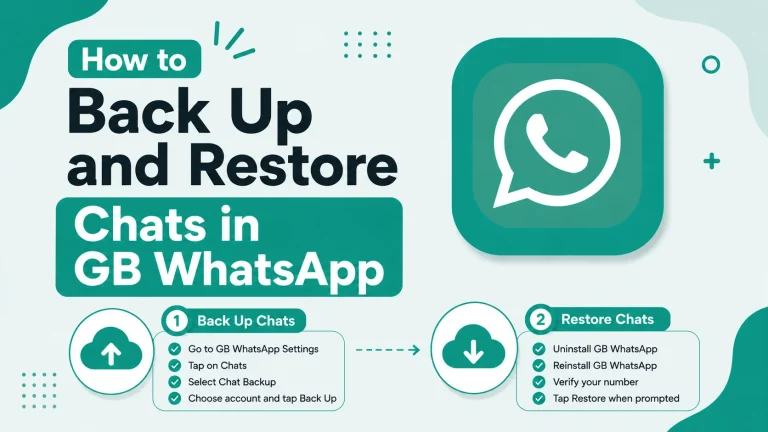
Local backups are the most reliable way to transfer GB WhatsApp because they store everything on your device.
- Open GB WhatsApp on your old phone
- Tap the three dots in the top right corner
- Select GB Settings then Backup and Restore
- Choose Local Backup
- Wait for the backup to complete before proceeding
Where Local Backups Are Stored
Local backups are saved inside the GB WhatsApp folder on your internal storage. The file name includes the date and time, making it easy to identify the most recent backup.
Verifying the Backup File
- Open your file manager and navigate to the GB WhatsApp folder
- Locate the backup file with the most recent timestamp
- Make sure the file size matches the size of your chat history
- Copy the file to a safe location such as a microSD card or computer
Creating a Google Drive Backup
A Google Drive backup is useful if you want to transfer without manually moving files.
- Open GB Settings then Backup and Restore
- Tap Google Drive Backup
- Select your preferred Google account
- Choose a backup frequency or tap Back Up Now
Important Notes About Google Drive Backups
- GB WhatsApp uses a separate Google account slot from the official WhatsApp
- Make sure your Google account has enough storage for the backup
- Large media files may take longer to upload
- Cloud backups may take time to restore depending on internet speed
Transferring the Backup to the New Phone
There are two common methods to move the backup file to the new device.
Method One: Direct Transfer via Computer
- Connect your old phone to a computer using a USB cable
- Locate the GB WhatsApp backup file in the file manager
- Copy the file to your computer
- Connect the new phone and copy the file into the GB WhatsApp folder
- Safely disconnect both devices
Method Two: Wireless Transfer
- Upload the backup file to a cloud service such as Google Drive or Dropbox
- Download the file on the new phone
- Place the file in the GB WhatsApp backup folder
- Proceed with the installation and restore process
Installing GB WhatsApp on the New Phone
Once the backup is ready, install the latest GB WhatsApp APK on your new device.
- Download the APK from gbfmapps.net
- Enable Unknown Sources for your file manager or browser
- Tap the APK file to start the installation
- Open the app once the installation completes
Verifying Your Phone Number
During the first launch, you will be asked to verify your phone number. Use the same number that was registered on the old phone. You can receive the verification code through SMS or a phone call.
Restoring Your Backup
After verification, GB WhatsApp will detect the available backup and offer to restore it.
- Tap Restore when prompted
- Wait for the restoration process to complete
- Verify that your chats, media, and settings are present
What Gets Restored
| Data Type | Restored from Local Backup | Restored from Google Drive |
|---|---|---|
| Chat History | Yes | Yes |
| Images and Videos | Yes | Yes |
| Voice Notes | Yes | Yes |
| Custom Themes | Yes | Limited |
| Locked Chats | Yes | Yes |
| Privacy Settings | Yes | Yes |
| Recycle Bin | Yes | No |
Restoring Themes and Sticker Packs
Custom themes and sticker packs are stored inside the GB WhatsApp folder. As long as you copied the full folder during the transfer, they will appear after the restore.
Common Transfer Problems and Solutions
Even with careful preparation, you might encounter issues during the transfer. The table below lists the most common problems and how to fix them.
| Problem | Cause | Solution |
|---|---|---|
| Backup not detected | Wrong folder location | Place the backup in the correct GB WhatsApp folder |
| Chats restored without media | Media folder not copied | Copy the entire Media folder from the old phone |
| Verification code not received | Network delay | Wait a few minutes and request the call option |
| Themes missing after restore | Custom theme files not transferred | Re-apply themes from the theme store |
| Locked chats not restored | Lock file missing | Use the same PIN to restore locked chats |
Special Tips for Group Admins
If you are an admin in any group chats, transferring to a new phone does not affect your admin privileges. However, it is a good idea to verify your admin status after the restore to confirm everything is in order.
Re-joining Groups After a Failed Restore
In rare cases where group memberships are lost, you can rejoin through shared invite links. Ask another group member to send you the latest invite link if needed.
Securing Your Account After the Transfer
After successfully moving to the new phone, take a moment to secure your account.
- Enable two-step verification
- Set up a new app lock PIN
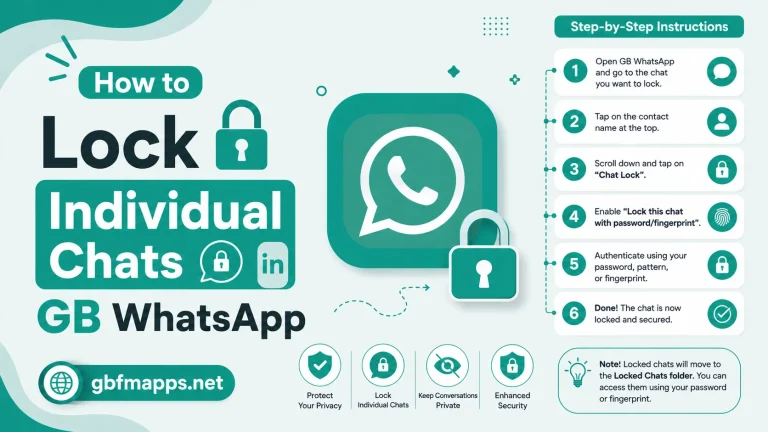
- Verify that chat lock is still active
- Confirm your backup schedule is working
- Enable anti-ban protection in the privacy menu
Recommended Post-Transfer Settings
| Setting | Recommended Value |
|---|---|
| Two-Step Verification | Enabled with secure PIN |
| App Lock | Fingerprint or strong PIN |
| Backup Frequency | Daily local and weekly Google Drive |
| Anti-Ban | All available protections enabled |
| Notifications | Customized for each chat |
Frequently Asked Questions
Can I transfer GB WhatsApp from Android to iPhone?
No, GB WhatsApp does not support cross-platform transfer. The data formats are different, and iOS does not allow installing APK files.
Will my chat history transfer if I use Google Drive?
Yes, Google Drive backup includes most of your chat history and media. Local backup is more complete, but cloud backup is more convenient.
Do I need the same phone number on the new device?
Yes, the phone number is tied to your GB WhatsApp account. Changing the number requires a separate transfer process within the app.
How long does the transfer take?
The transfer time depends on the size of your backup. A typical transfer with thousands of messages takes around ten to twenty minutes.
Can I keep using the old phone after the transfer?
Yes, but you must verify the number on only one device at a time. If you log in on the new device, the old installation will be deactivated automatically.
Conclusion
Transferring GB WhatsApp to a new phone is straightforward when you back up your chats and media correctly. By following the steps above and downloading the latest APK from gbfmapps.net, you can move your entire messaging history without losing a single message. Take a few minutes to secure your new installation, customize your settings, and enjoy a smooth transition to your new device.