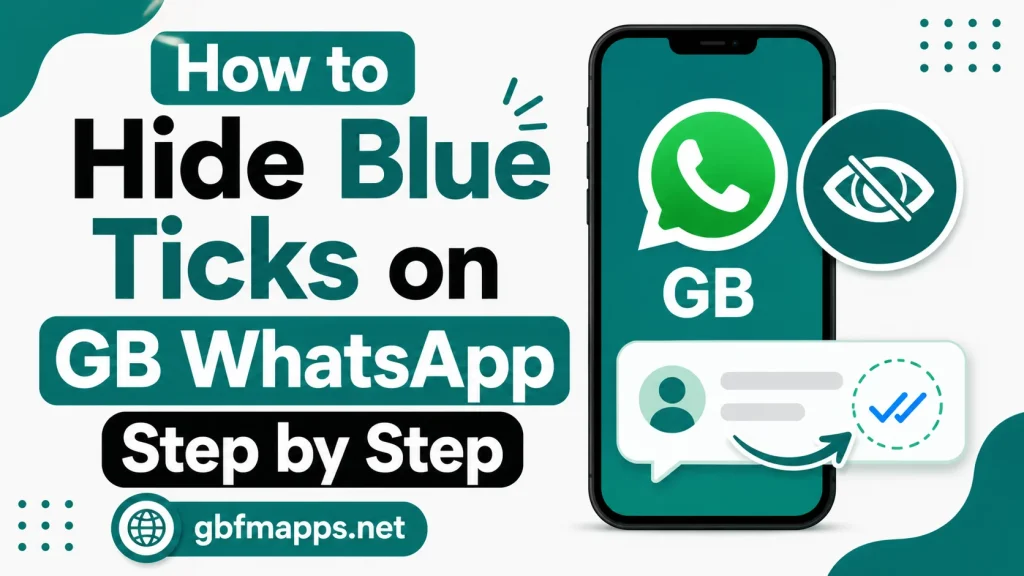
How to Hide Blue Ticks on GB WhatsApp Step by Step
Blue ticks are one of the most recognizable features in WhatsApp. They let the sender know exactly when their message has been read. While this can be convenient, many people prefer to read messages privately without feeling pressured to reply immediately. The good news is that GB WhatsApp APK makes it extremely easy to hide blue ticks without missing out on any other feature. This guide from gbfmapps.net walks you through every step, explains the different modes available, and shares tips for managing your read receipts the smart way.
What Are Blue Ticks and Why Hide Them
Blue ticks appear under a message once the recipient opens the conversation. The sender sees two grey ticks when the message is delivered and two blue ticks when the message is read. While this helps confirm communication, it can create social pressure, especially in busy group chats or work conversations.
Hiding blue ticks lets you read messages on your own schedule. You can take your time to think about a response without the sender knowing you have already seen their text. GB WhatsApp gives you several ways to manage this, including selective hiding and a special reply mode that brings back the ticks only when you reply.
Understanding the Different Tick States
Before changing settings, it helps to understand exactly what each tick state means.
| Tick State | Meaning |
|---|---|
| Single Grey Tick | Message sent from your device |
| Double Grey Tick | Message delivered to the recipient |
| Double Blue Tick | Message read by the recipient |
| No Ticks | Message could not be sent or is still pending |
| Clock Icon | Message scheduled or waiting to be sent |
GB WhatsApp lets you control the appearance of all these states through the privacy menu.
Step-by-Step: Hiding Blue Ticks in GB WhatsApp
The process is straightforward and takes less than a minute once you know where to look.
- Open GB WhatsApp on your Android device
- Tap the three dots in the top right corner of the home screen
- Select GB Settings from the menu
- Tap Privacy and Security
- Locate the Blue Ticks option inside the Privacy menu
- Toggle the switch to turn off blue ticks
Verifying That the Setting Works
After turning off blue ticks, send a test message to a friend or use a secondary number to confirm the change. Open the message from the other side and check whether blue ticks appear under your reply. If they do not, the setting is working correctly.
Enabling Selective Blue Tick Hiding
GB WhatsApp also allows you to hide blue ticks only for specific contacts.
- Open GB Settings then Privacy and Security
- Choose Selective Contact Privacy
- Pick the contact for whom you want to hide blue ticks
- Toggle off Allow Blue Ticks
- Save the rule to apply it
Using Reply Mode for Smart Replies
Reply Mode is a powerful feature in GB WhatsApp that brings back the blue ticks only when you actually reply to a message. This is perfect for users who want privacy but still want to give the sender confirmation when they choose to respond.
Activating Reply Mode
- Open GB Settings then Privacy and Security
- Find the Blue Ticks menu
- Toggle on Hide Blue Ticks
- Toggle on the Reply Mode option below it
How Reply Mode Works
With Reply Mode active, blue ticks remain hidden until you type a response and tap send. The moment your reply is delivered, the blue ticks appear on the sender side, giving them confirmation that you have read the message and responded.
When Reply Mode Is Useful
Reply Mode is great for work conversations where you want to acknowledge important messages without giving away that you read less urgent ones. It is also helpful in group chats where selective responses are more polite than silent reads.
Customizing Tick Appearance
In addition to hiding ticks, GB WhatsApp lets you change the way they look. Custom tick styles add a personal touch to your chat screen.
Changing Tick Color
- Open GB Settings then Universal
- Look for the Tick Style option
- Choose your preferred color from the available palette
- Save the change to apply it instantly
Hiding the Second Tick
Some users prefer to hide the double tick so senders cannot even tell whether the message was delivered. This adds another layer of privacy for cautious communicators.
- Open GB Settings then Privacy and Security
- Find the Second Tick option
- Toggle the switch off
Combining Blue Tick Hiding With Other Privacy Tools
Blue tick hiding works best when combined with other privacy features. The list below shows a few combinations that create a complete private messaging experience.
- Hide Last Seen so contacts cannot tell when you were last online
- Hide Typing Indicator so you can draft messages privately
- Lock the App so no one can read messages without your permission
- Disable Message Previews in notifications for added discretion
Recommended Privacy Stack for Maximum Discretion
| Privacy Layer | Tool to Enable |
|---|---|
| Message Reading | Hide Blue Ticks with Reply Mode |
| Online Status | Freeze Last Seen |
| Message Drafting | Hide Typing Indicator |
| Notifications | Disable Previews |
| App Access | Fingerprint Lock |
Common Mistakes to Avoid
Even though the feature is easy to use, a few mistakes can ruin the experience. The table below lists common pitfalls and how to avoid them.
| Mistake | Why It Is a Problem | Better Approach |
|---|---|---|
| Forgetting to enable Reply Mode | Sender never receives read confirmation even when you reply | Enable Reply Mode for selective confirmation |
| Hiding ticks for everyone without exceptions | Important contacts may think you are ignoring them | Use selective privacy for close contacts |
| Combining with auto-delete settings | Important messages may disappear before you read them | Avoid enabling auto-delete for private chats |
| Using both official and GB WhatsApp on the same number | Tick states may sync incorrectly | Pick one client per phone number |
How Hiding Blue Ticks Affects Group Chats
Group chats work a little differently because every member has their own tick state. Hiding blue ticks in a group hides them for everyone in that group. This is useful for reading large group conversations without being noticed.
Best Practices for Group Chats
- Use Reply Mode to acknowledge messages you actually want to respond to
- Mute busy groups to reduce notification pressure
- Hide blue ticks for very large groups where read receipts are less meaningful
Reverting to Default Settings
If you ever want to go back to the standard blue tick behavior, follow these steps.
- Open GB Settings then Privacy and Security
- Find Blue Ticks and toggle the switch on
- Optionally disable Reply Mode if you want standard read receipts
Saving Your Settings as Presets
GB WhatsApp allows you to save your privacy preferences as a preset that can be activated with one tap. This is helpful if you switch between private and open communication styles during the week.
Frequently Asked Questions
Will the sender know I hid blue ticks?
No, the sender simply sees the message as unread. There is no alert or notification telling them that you have turned off blue ticks.
Can I hide blue ticks for one contact only?
Yes, the selective contact privacy feature lets you hide blue ticks for specific people while keeping them on for everyone else.
Does hiding blue ticks affect my ability to see others read receipts?
GB WhatsApp keeps this independent. You can hide your own blue ticks while still seeing when others read your messages.
Why do some messages still show blue ticks even after I turned them off?
This usually happens in group chats or when a contact is using an older version of WhatsApp. Make sure both you and your contacts are on the latest build.
Does Reply Mode work in group chats?
Yes, Reply Mode works in both private and group conversations. Blue ticks appear only after you reply to a specific message.
Conclusion
Hiding blue ticks in GB WhatsApp is one of the simplest ways to take back control of your messaging privacy. With options for selective hiding, reply mode, and custom tick styles, you can create a setup that matches your communication style perfectly. Open the privacy menu, adjust the settings to your preference, and enjoy stress-free reading. For the latest version of GB WhatsApp and updated privacy guides, visit gbfmapps.net anytime. By combining blue tick hiding with other privacy features, you can create a messaging experience that feels private, comfortable, and completely under your control.