How to Update GB WhatsApp Without Losing Chats and Media
Keeping GB WhatsApp updated is essential for getting the latest features, the strongest anti-ban protection, and the smoothest performance. However, one of the biggest worries users have is whether updating will erase their chats, photos, videos, and voice notes. The good news is that when done correctly, updating GB WhatsApp does not delete any of your data. This guide from gbfmapps.net walks you through the safest update process and explains exactly how to protect your information before, during, and after an upgrade.
Why Updating GB WhatsApp Matters
Updates do much more than add a few new icons. Every release includes important fixes that improve security, performance, and compatibility with the official WhatsApp servers. Skipping updates can leave your account exposed to detection, your conversations vulnerable to crashes, and your media files at risk of corruption.
By updating regularly, you also gain access to new features like extended status length, additional themes, and improved privacy controls. The development team listens closely to community feedback, and each release usually brings several enhancements that were requested by active users.
Understanding How Data Is Stored in GB WhatsApp
Before updating, it helps to understand how GB WhatsApp stores your data on your Android device. This knowledge will make the backup process much easier.
| Data Type | Storage Location |
|---|---|
| Chat history | Internal storage, GB WhatsApp database folder |
| Images and videos | Internal storage, GB WhatsApp Media folder |
| Voice notes | Internal storage, GB WhatsApp Audio folder |
| Status updates | Internal storage, GB WhatsApp Status folder |
| Themes and settings | Internal storage, GB WhatsApp Preferences file |
The Database Folder Explained
Your chat history is stored in a database file that GB WhatsApp creates automatically. This file is updated every time you send or receive a message. When the app updates, the database file is preserved, which is why updates normally do not erase your chats.
Media Folder Structure
Images, videos, and audio files are stored in dedicated folders. These folders are not touched by the installer during an update. As long as you do not clear app data manually, your media stays safe.
Preparing for the Update
A few minutes of preparation can save you hours of recovery work in the rare event that something goes wrong. The list below covers the essential preparation steps.
- Connect your phone to a stable Wi-Fi network
- Make sure your battery is at least 50 percent charged
- Free up at least 300 MB of internal storage
- Back up your chats to your local storage
- Write down your phone number in case verification is needed
Creating a Local Backup
GB WhatsApp has a built-in backup tool that saves your chats and media to your device storage.
- Open GB WhatsApp and tap the three dots in the top right
- Select GB Settings then Backup and Restore
- Tap Local Backup
- Wait for the backup to complete before proceeding
Creating a Google Drive Backup
If you prefer to back up to the cloud, GB WhatsApp supports Google Drive as well.
- Open GB Settings then Backup and Restore
- Tap Google Drive Backup
- Choose a backup frequency and your preferred Google account
- Tap Back Up Now to start the process
Downloading the Latest Version
Once your backup is complete, the next step is to download the latest GB WhatsApp APK. Always use the trusted source at gbfmapps.net to avoid tampered files or modified builds.
The download size is usually between 55 MB and 75 MB. Save the file to your Downloads folder and verify that the package name matches the official GB WhatsApp package before installing.
Verifying the File
- Tap the APK file in your file manager
- Confirm the package name and version number
- Make sure the file size matches the description on the download page
Installing the Update
With the new APK saved to your device, you can now install the update. The process is identical to installing the app for the first time.
- Open your file manager and locate the new APK
- Tap the file and confirm the installation prompt
- Wait for the installer to finish
- Do not open the app immediately if you want to clear the cache first
Clearing the Cache Before Launching
Clearing the cache before launching the new version can prevent small glitches like stuck notifications or duplicate themes.
- Go to Settings then Apps then GB WhatsApp
- Tap Storage and choose Clear Cache
- Reopen the app to begin the setup verification
Verifying That Your Data Is Intact
Once the app opens, it will verify your phone number using SMS or a call. After verification, the application will check for available backups and offer to restore them.
Checking Chat History
Open a few recent conversations and scroll through them. Make sure the messages are intact and the media files load correctly. If everything looks good, your update was successful.
Confirming Media Files
Open the gallery section within GB WhatsApp and verify that your saved images and videos are still available. Listen to a few voice notes to confirm that audio files are not corrupted.
Re-Enabling Your Custom Settings
After an update, some customization settings are sometimes reset to defaults. Take a moment to re-enable your favorite options like blue tick hiding, last seen freezing, and theme choices.
Troubleshooting Update Problems
Although updates are usually smooth, you may occasionally run into issues. The table below covers the most common problems and their fixes.
| Problem | Cause | Solution |
|---|---|---|
| Update fails to install | Conflicting old version | Uninstall the old version before installing the new one |
| Chats missing after update | Local backup was not created | Restore from Google Drive or reinstall the previous version |
| App crashes on launch | Corrupted APK file | Re-download from gbfmapps.net |
| Verification code not received | Network issue | Wait five minutes and request the call option |
| Themes reset to default | Cache cleared during update | Re-apply your saved theme presets |
When to Consider a Clean Reinstall
If your chats or media are missing after several attempts, a clean reinstall may be required. This process removes the app entirely, then installs the latest version from scratch.
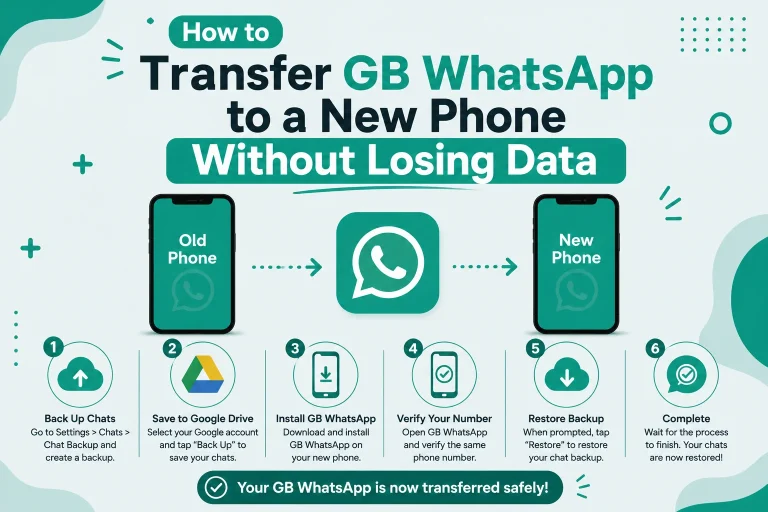
- Back up your chats locally and to Google Drive
- Uninstall GB WhatsApp
- Restart your phone to clear the cache
- Install the latest version from gbfmapps.net
- Verify your number and restore from your most recent backup
Avoiding Future Issues
After a successful clean reinstall, set up automatic backup reminders within the app. This way, you will always have a recent backup available before every update.
Frequently Asked Questions
Will I lose my chats if I update GB WhatsApp?
No, updates do not delete your chats as long as you create a backup before installing the new version. Most users keep their entire chat history without any issues.
How often should I update GB WhatsApp?
You should update whenever a new build is released on gbfmapps.net. Major updates roll out every few months, while smaller fixes arrive more frequently.
Can I update without uninstalling the old version?
Yes, GB WhatsApp supports in-place updates. Simply install the new APK over the existing app and your data will be preserved.
Where does GB WhatsApp store local backups?
Local backups are stored in the GB WhatsApp folder inside your internal storage. The file name includes the date and time of the backup for easy identification.
What happens if an update is interrupted by a crash?
If an update is interrupted, your data should still be safe because the installer only replaces the application files, not the data folder. Reinstall the latest version to complete the update.
Creating a Post-Update Checklist
To make sure your update went perfectly, walk through this short checklist after every major upgrade.
Verify Chat History
Open your most active conversations and scroll through recent messages. Confirm that timestamps, media files, and voice notes are intact. If anything looks off, restore from your backup immediately.
Check Custom Settings
Some advanced settings may revert to defaults after an update. Open GB Settings and verify that your preferred privacy, theme, and notification choices are still active.
Test Notifications
Send a test message from another device to make sure notifications are arriving correctly. If notifications are delayed, check the battery optimization settings.
Confirm Backup Schedule
After an update, the auto backup schedule may reset. Open the backup menu and re-enable your preferred schedule so you never miss a backup.
Updating on Slow Internet Connections
If your internet connection is slow or unstable, use the tips below to update without frustration.
- Download the APK during off-peak hours for faster speeds
- Use a Wi-Fi network rather than mobile data to avoid extra charges
- Pause the download if it stalls and resume when the connection is stable
- Consider downloading the APK on a computer first and transferring it to your phone via USB
Using a Computer to Download
- Visit gbfmapps.net on your computer
- Download the latest APK
- Connect your phone via USB
- Copy the file to the GB WhatsApp download folder
- Install the file directly from your phone
Managing Update Notifications
GB WhatsApp can notify you whenever a new version is available. To enable this feature, open GB Settings and toggle on Update Notifications. This helps you stay current without manually checking the website.
Conclusion
Updating GB WhatsApp 2026 without losing your chats and media is simple when you take a few minutes to prepare before installing the new build. Back up your data, download the latest APK from gbfmapps.net, verify the file, and install it confidently. With regular updates, your account stays safe, your app stays fast, and you keep enjoying every feature that makes GB WhatsApp the preferred choice for millions of users around the world.